Changing Colors in Redragon Keyboards: A Comprehensive Guide

Introduction

Want to change the RGB lighting on your Redragon keyboard? You can customize your setup in two main ways: using quick keyboard shortcuts or through the official Redragon software.

Because key combinations and customization features vary depending on your specific model, this guide covers both methods step-by-step to help you achieve your preferred lighting setup quickly and easily.

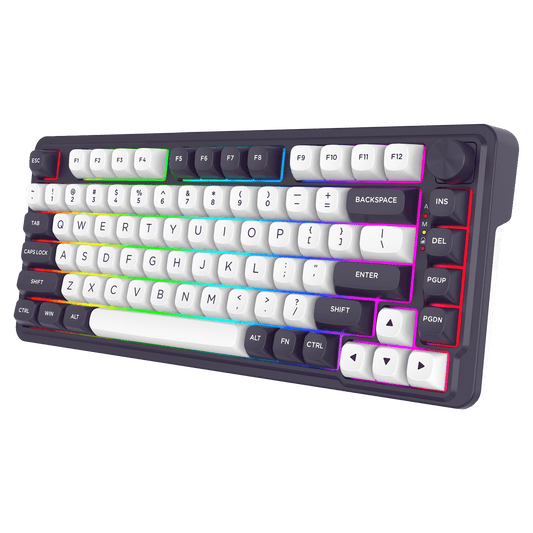
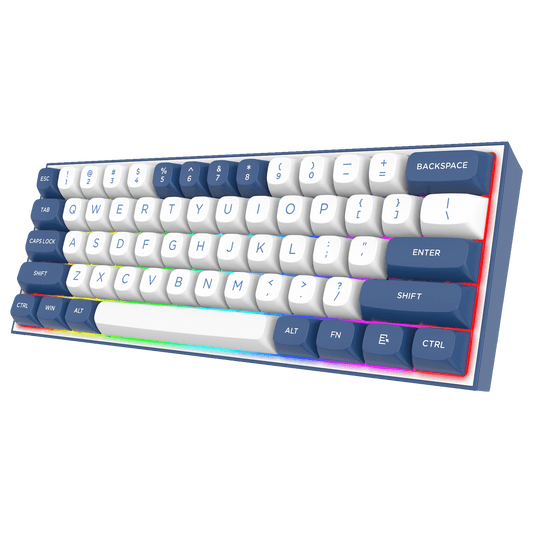
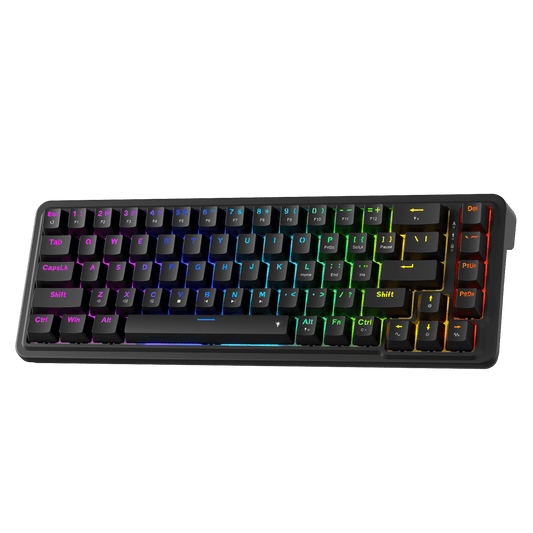
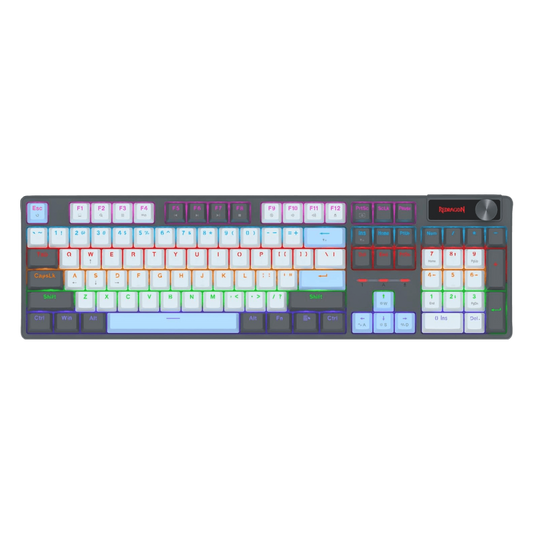
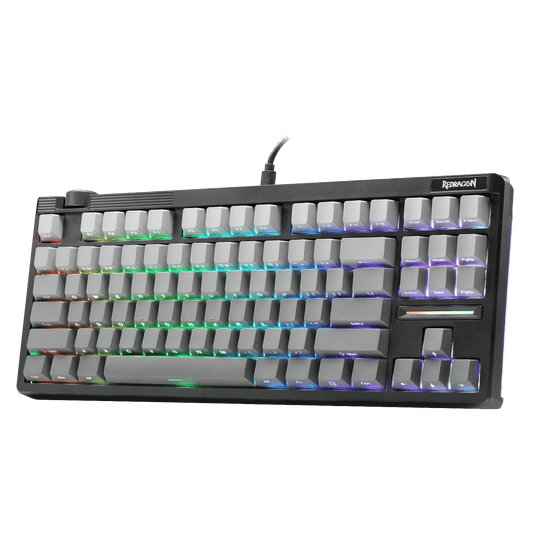
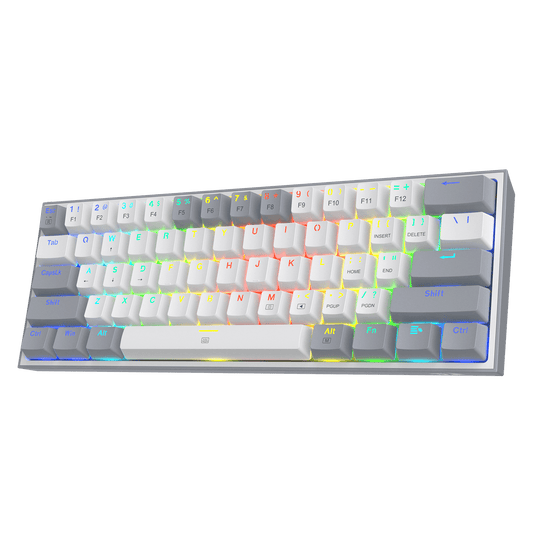
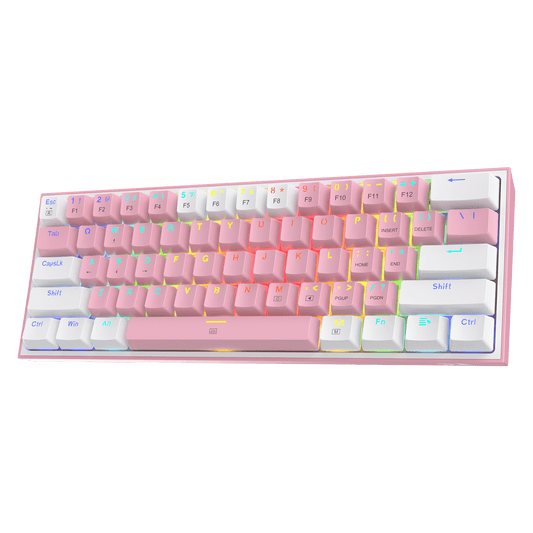
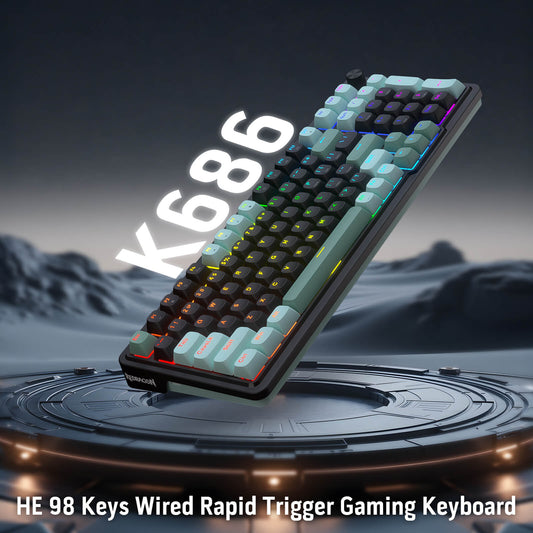
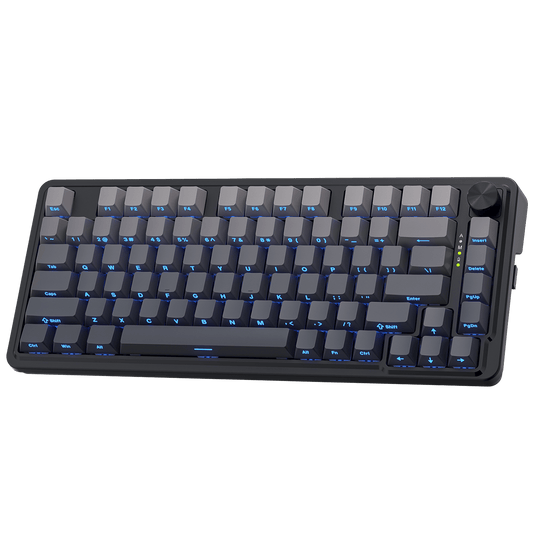
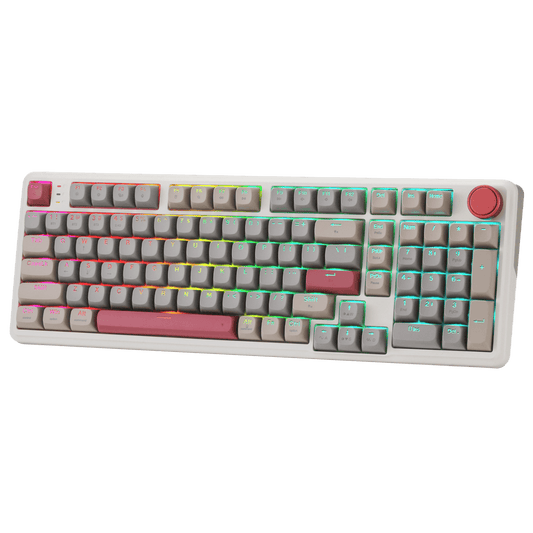
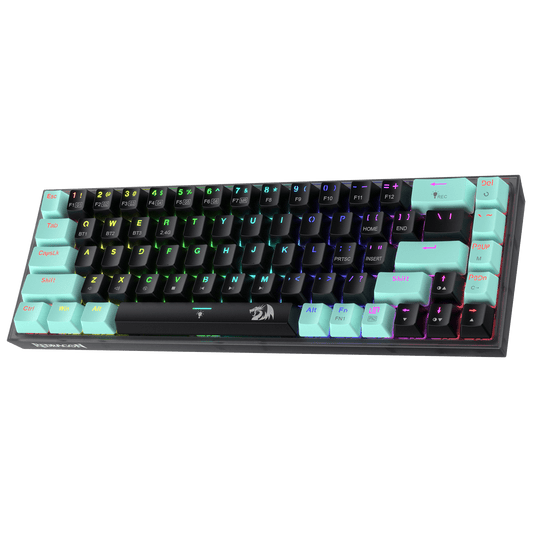
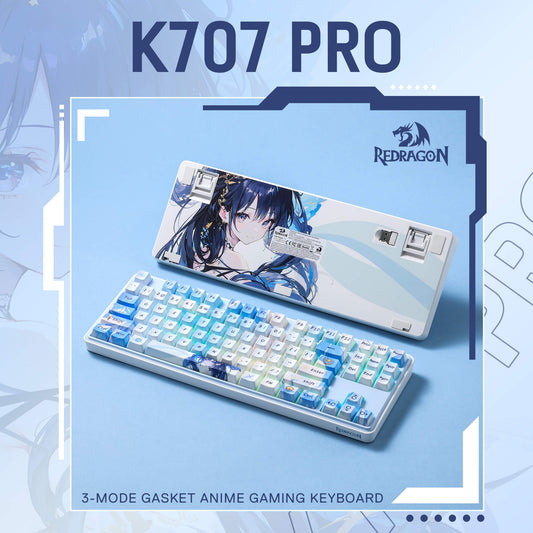
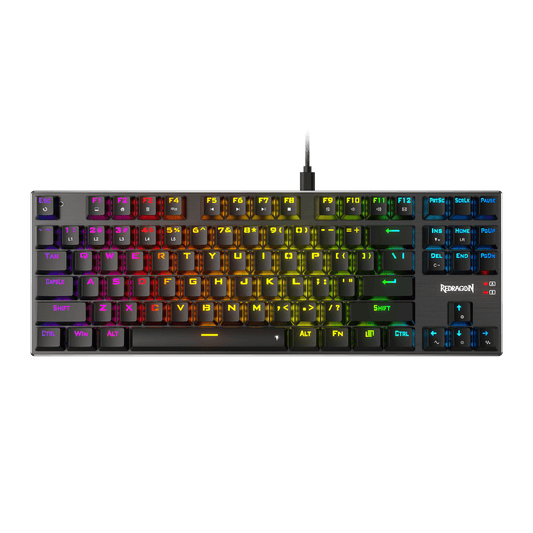
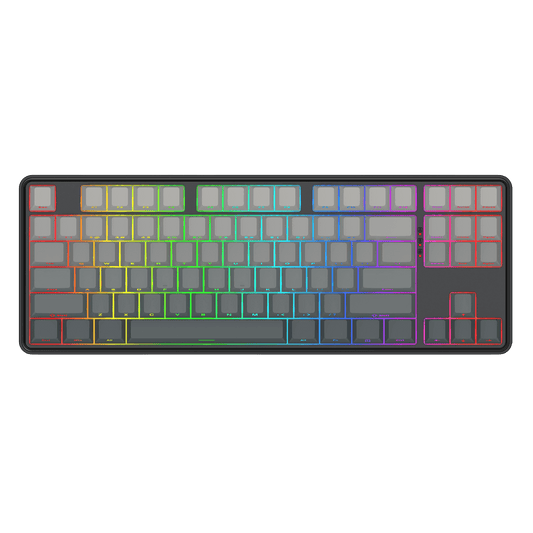
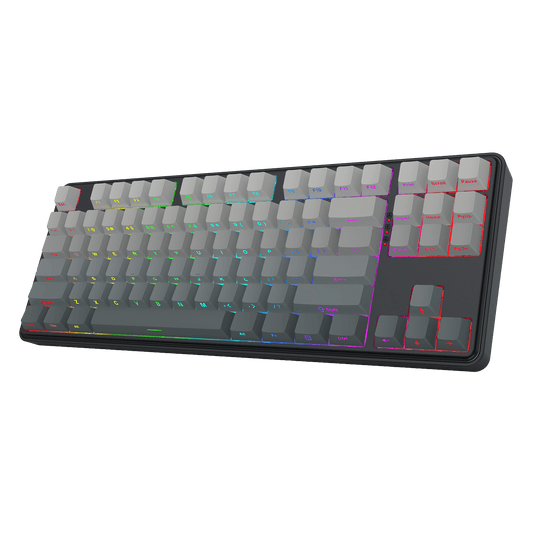
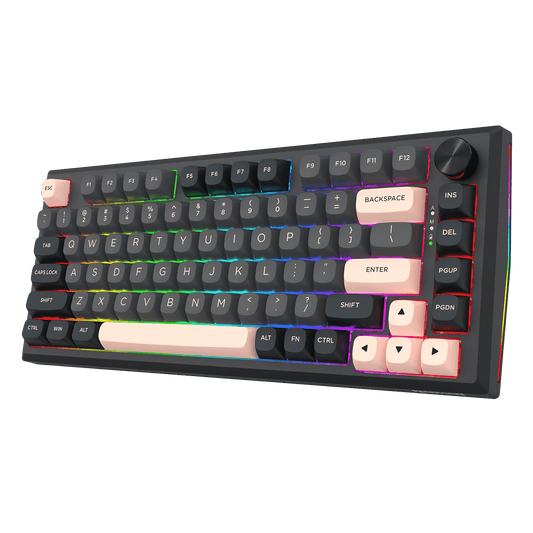
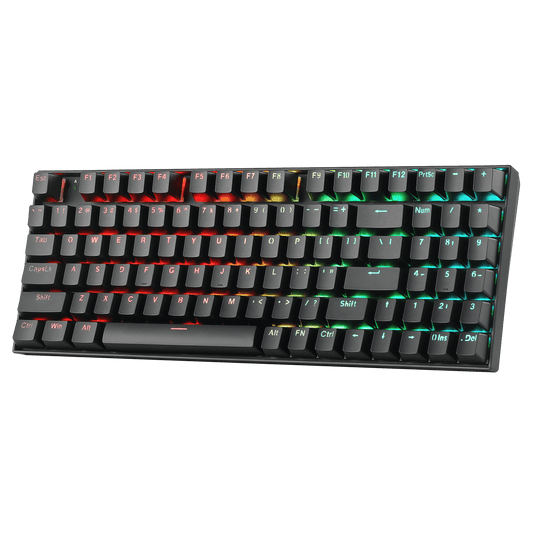
Redragon RGB gaming keyboard

Quick Answer

How do I change my Redragon keyboard lighting? You can change the lighting on a Redragon keyboard in two ways:

  • Keyboard Shortcuts: Use the Fn key with your model's designated lighting keys to cycle through effects, colors, or brightness levels. ➔ Jump to Keyboard Shortcuts
  • Redragon Software: Download the official software for your model to select preset modes, customize colors, adjust brightness, or set per-key RGB lighting. ➔ Jump to Software Guide

Note: Exact shortcut combinations vary by model. If your model doesn't support full RGB customization, check out our Top Recommended Redragon RGB Keyboards.


Table of Contents


Before You Start: What You Need to Know

  • RGB vs. Single-Color LED: RGB models support multiple colors and, on supported models, per-key or zone-based customization. Single-color LED models typically allow you to adjust brightness and lighting effects, but not the backlight color.
  • Shortcuts Vary by Model: There is no universal lighting shortcut across all Redragon keyboards. Always verify key combinations in your product manual.
  • Connect via USB for Software: If you are using a Redragon wireless or multi-mode keyboard, connect the keyboard via USB cable before using the software.


Redragon Keyboard Lighting Modes

Most Redragon RGB keyboards come pre-programmed with dynamic lighting effects. Here is a quick breakdown of what each standard mode does:

Mode Visual Effect
Static Keeps a constant, solid color across the keyboard.
Breathing Slowly pulses light in and out using a single or shifting color.
Wave Flows colors continuously across the keycaps like a wave.
Ripple Creates a ripple-like lighting effect across the keyboard upon keypress.
Reactive Responds to your keystrokes with dynamic lighting effects.
Custom / Self-Define Allows you to pick distinct colors for individual keys or lighting zones.


Method 1: Changing Colors Using Keyboard Shortcuts

Keyboard shortcuts offer the quickest way to change backlight modes, switch colors, adjust brightness, or turn off the lights on the fly without launching software.

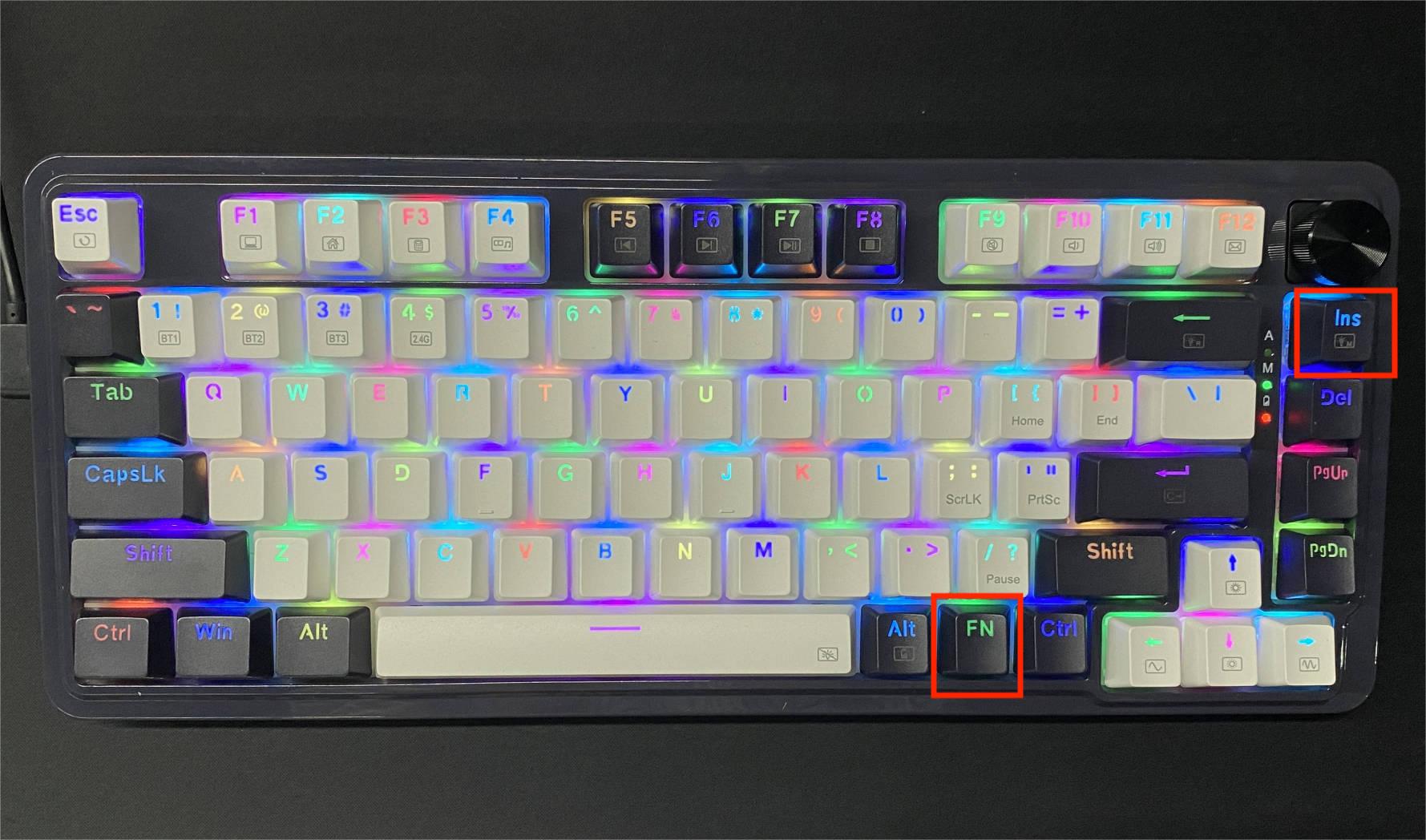
Tip: Shortcut keys vary by model. The instructions below use the Redragon UCAL K673 PRO as an example. Refer to your product manual for your specific model’s key bindings.

1. Change Lighting Modes and Colors

  • Cycle Modes (UCAL K673 PRO): Press Fn + Ins simultaneously to cycle through its 16 available lighting modes.
  • Switch Colors: On supported models, use the designated lighting shortcut to cycle through available colors within a chosen mode. Check your keyboard's manual for the exact key combination.

Redragon UCAL K673 PRO lighting shortcut

2. Adjust Brightness Level

  • Increase Brightness: Press Fn + ↑
  • Decrease Brightness: Press Fn + ↓
  • For other models, refer to your manual for the designated brightness shortcut keys.

Redragon keyboard brightness controls

3. Turn Off Keyboard Lighting

  • Turn Off Lights (UCAL K673 PRO): Press Fn + Spacebar to turn off the keyboard lighting.
  • For other models, check the user manual for the correct lighting-off shortcut.

Redragon keyboard lighting off shortcut


Looking for Shortcut Guides for Your Specific Model?

Since RGB key combinations vary by model, check out these video quick-guides to see the exact lighting shortcuts in action on popular Redragon keyboards:


Method 2: Customizing Lighting with Redragon Software

The official Redragon software provides precise control over RGB effects, custom color palettes, and per-key illumination profiles.

Step 1: Download and Install the Software

  1. Go to the official Redragon Software Download Center.
  2. Search for your specific keyboard model in the product list.
  3. Download the software package (ZIP file) and extract it.
  4. Run setup.exe to complete the installation. (Remember: Connect the keyboard via USB cable before using the software.)


Step 2: Customize Lighting Profiles

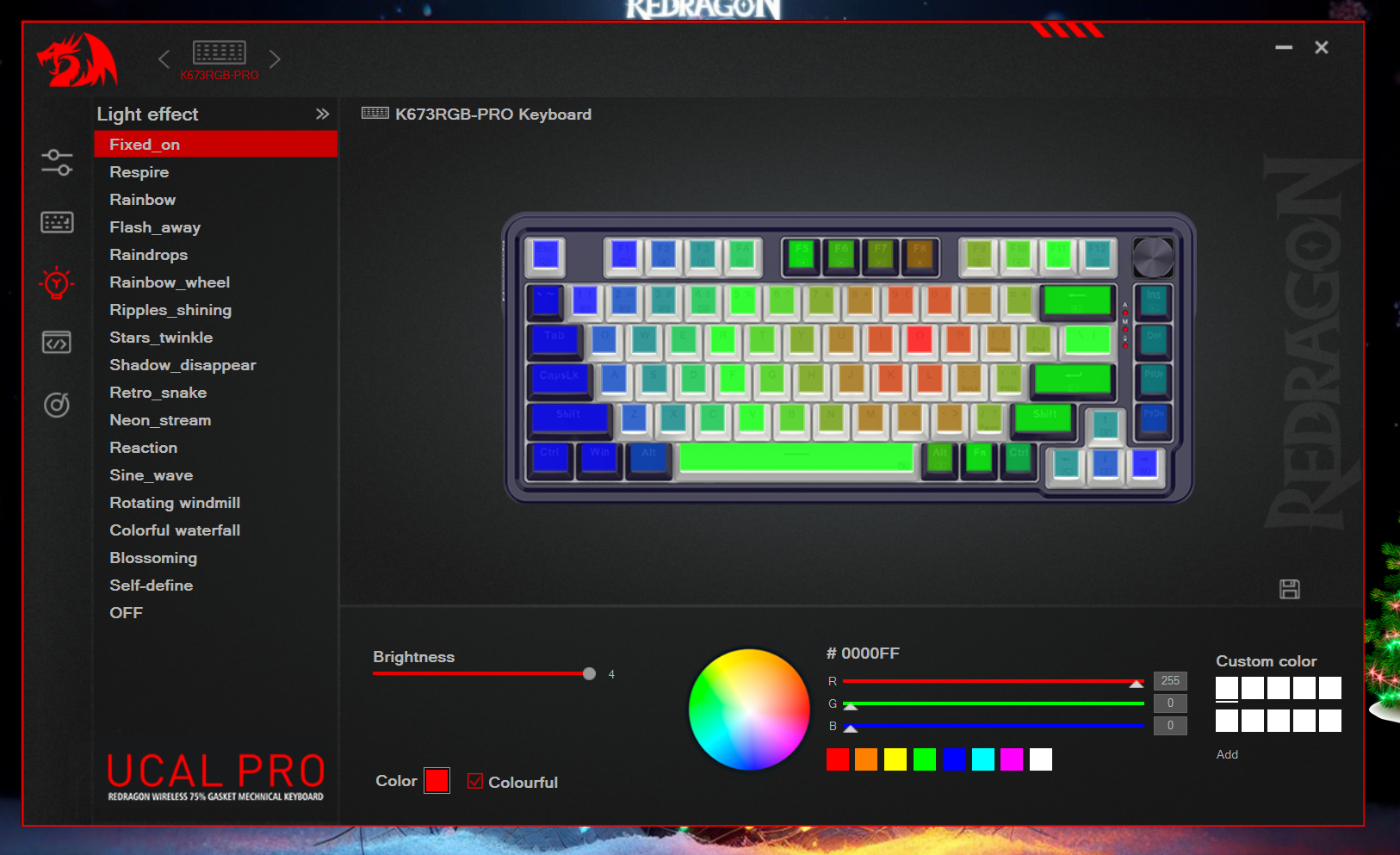
  1. Open the Redragon software and click on the Lighting tab.
  2. Choose your preferred lighting mode from the drop-down menu or visual preview.
  3. Use the color palette or RGB controls to select your preferred color.
  4. Adjust the effect speed and brightness sliders to your liking.
  5. Click Apply or Save to apply the settings to your keyboard.

Redragon software RGB lighting customization

How to Customize Individual Key Colors (Per-Key RGB)

Want to highlight important keys for specific games, such as WASD or ability keys in MOBA games? You can customize individual key colors using either onboard shortcuts or the software.

Option A: Using Onboard Custom Mode

Example shown on Redragon UCAL K673 PRO.
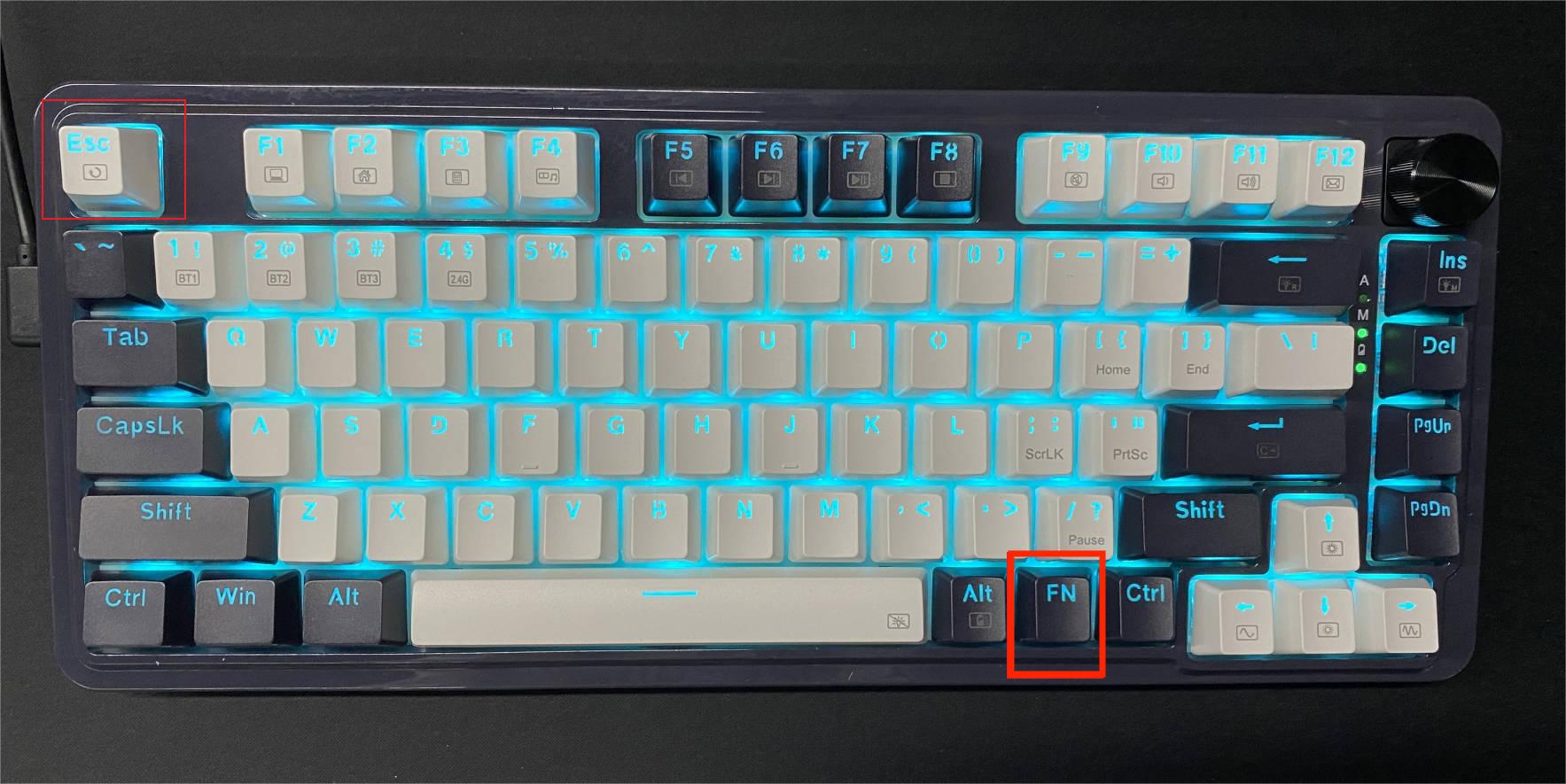
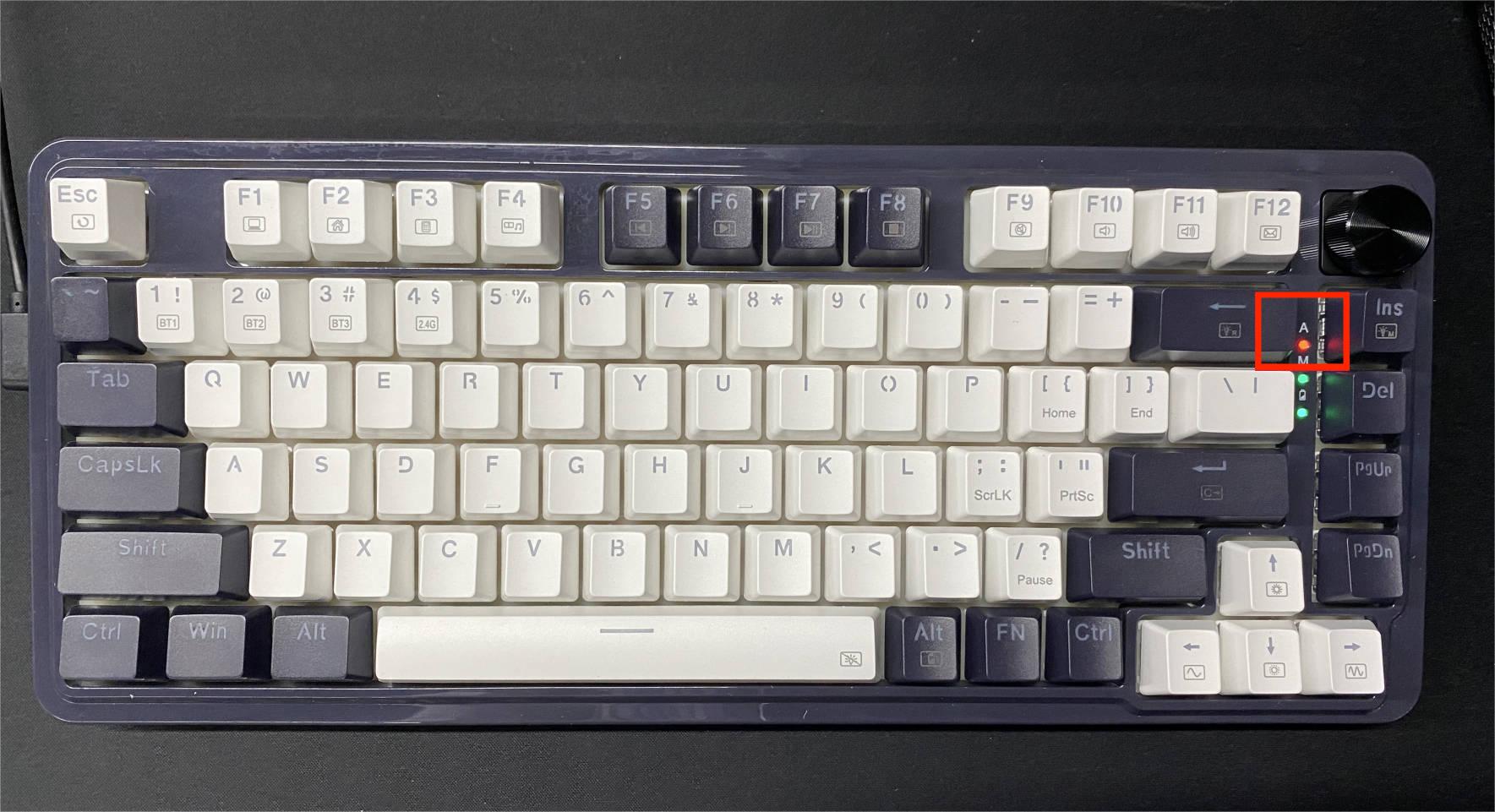
  1. Reset Settings (Optional): Hold Fn + Esc to reset the keyboard to factory default lighting.
    Resetting Redragon UCAL K673 PRO lighting settings
  2. Enter Custom Mode: Hold Fn + Backspace to activate custom mode.
    Entering custom lighting mode on Redragon UCAL K673 PRO
  3. Start Customization: Press Fn + Backspace a second time. The indicator LED will flash, confirming key-selection mode is active.
    Starting per-key RGB customization on Redragon UCAL K673 PRO
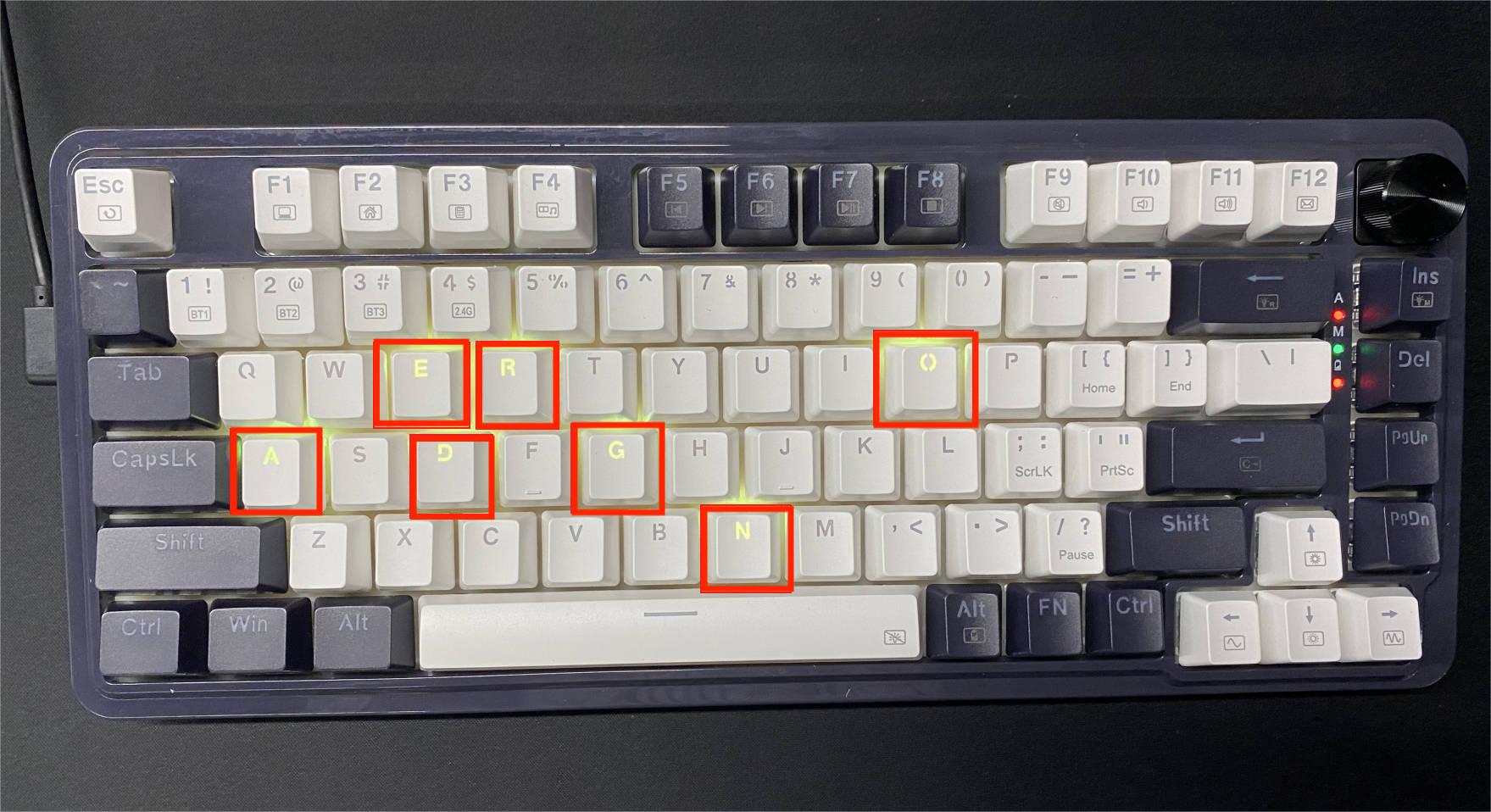
  4. Select and Color Keys: Tap individual keys repeatedly to cycle through available colors until you reach your desired color for each key.
    Selecting individual key colors on Redragon UCAL K673 PRO
  5. Save Custom Profile: Hold Fn + Backspace again to save your custom layout.

Option B: Using Redragon Software

Custom per-key RGB lighting in Redragon software

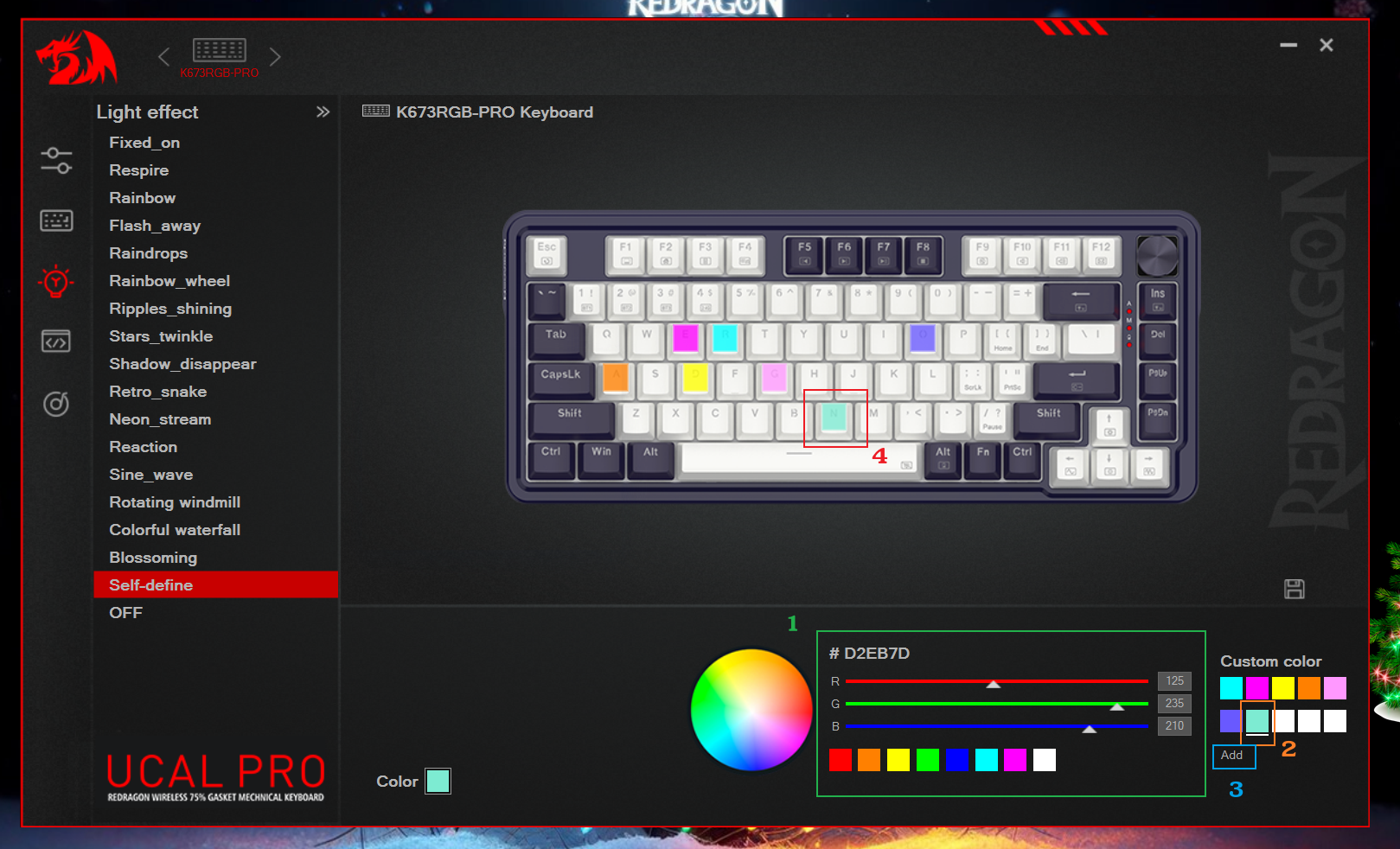
  1. Launch the Redragon software and select the Lighting tab.
  2. Choose the Custom or Self-Define mode option.
  3. Pick a color from the color palette at the bottom of the interface.
  4. Click directly on the virtual keyboard keys in the software preview to apply the selected color to specific keys.
  5. Click Save in the bottom-right corner to store your per-key layout.


Looking for a keyboard that takes RGB customization a step further? Here are three Redragon RGB keyboards worth considering, each offering a different combination of lighting, performance, and everyday features.


WYVERN K761 PRO

Best for Easy RGB Control & Full-Size Setups

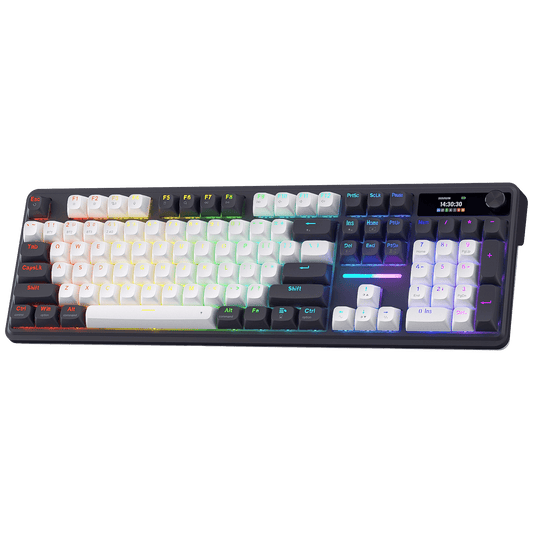
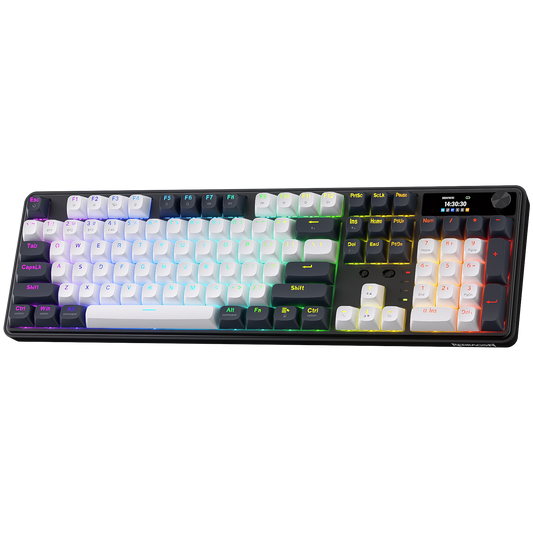
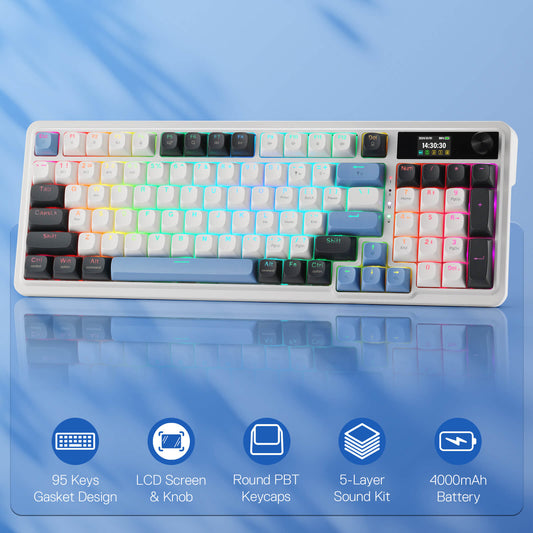
The WYVERN K761 PRO features a full-size 104-key layout, an LCD screen and control knob, and RGB lighting that can be adjusted directly from the keyboard for quick and convenient control. Its shine-through PBT keycaps help showcase the backlighting, while the 4000mAh battery provides long-lasting power for everyday use.


VATA K580 HE

Best for FPS Gaming & High-Impact RGB

Built with a full-size 104-key layout, the VATA K580 HE combines 8K Hall Effect magnetic switches with a performance-focused design for FPS gaming. Its RGB side lighting adds a more visible lighting effect around the keyboard, making it a strong choice for gamers who want fast magnetic input and a more eye-catching setup.


ANTONIUM K745 PRO

Best for Custom Looks & Multi-Platform Use

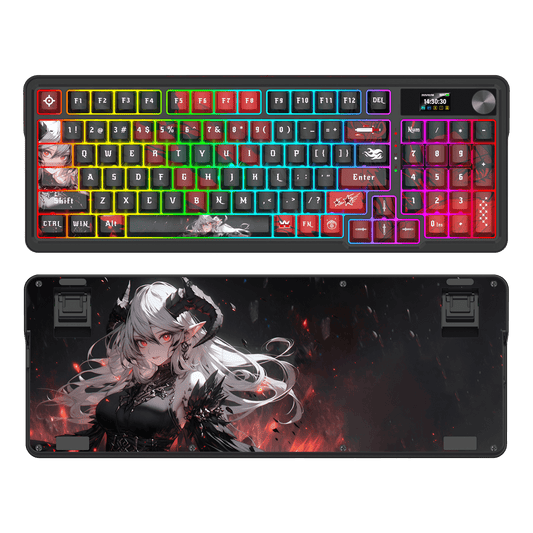
The ANTONIUM K745 PRO features a 108-key layout with four extra hotkeys and distinctive see-through round PBT keycaps that let the RGB lighting stand out. With support for both Windows and Mac, it is designed for users who want a distinctive keyboard for gaming, work, and everyday typing.


Explore More Redragon RGB Keyboards

Not sure which layout or feature set fits your setup? Explore the full range of Redragon RGB keyboards and find the combination of lighting, performance, and design that works for you. Explore Redragon RGB Keyboards


FAQs

Can I change the color on my Redragon keyboard without software?

Many Redragon keyboards support onboard shortcuts for changing lighting effects, colors, and brightness without opening the software. However, the available shortcuts vary by model, so check your keyboard's user manual for the correct key combination.

Why can't I change the lighting color on my Redragon keyboard?

If you can't change the lighting color, your keyboard may use single-color LED backlighting rather than full RGB. You should also make sure you are using the correct shortcut for your model and, for supported wireless keyboards, connect the keyboard via USB when using the Redragon software.

Can I customize individual key colors on a Redragon keyboard?

Yes, on Redragon keyboards that support Per-Key RGB, Custom, or Self-Define lighting, you can assign different colors to individual keys. Depending on the model, this can be done using onboard shortcuts or the Redragon software.

Why is my Redragon keyboard not detected by the software?

Make sure you have installed the software that matches your exact keyboard model. For wireless or multi-mode keyboards, connect the keyboard via USB before launching the software, then restart the software if necessary.

How do I reset my Redragon keyboard lighting?

The reset shortcut varies by model. On supported keyboards, Fn + Esc can reset the lighting to its default state, but you should check your keyboard's user manual for the exact reset combination.

Related Products

  • Read More Blogs

    View All Blogs >
    Everything You Need to Know About Mouse Polling Rate: A Comprehensive Overview
    Everything You Need to Know About Mouse Polling Rate: A Comprehensive Overview
    when considering a mouse's polling rate, it is crucial to understand that a higher polling rate generally results in more responsive and precise cursor movements. For gaming purposes, a polling rate between 500Hz and 1000Hz is commonly preferred to ensure swift and accurate responses to user input. However, individual preferences and specific gaming scenarios may influence the optimal polling rate.
    The Ultimate Guide to 60% Keyboards: Everything You Need to Know
    The Ultimate Guide to 60% Keyboards: Everything You Need to Know
    In recent years, the 60% keyboard has emerged as a standout choice among keyboard enthusiasts and users seeking a compact yet powerful typing experience. This review delves into the world of 60% keyboards, offering insights into their design, functionality, and the reasons behind their surging popularity.
    How to Shop for a Mechanical Keyboard: A Comprehensive Guide
    How to Shop for a Mechanical Keyboard: A Comprehensive Guide

    In today's digital age, the keyboard has become an essential tool for most people. Whether you're a gamer, a programmer, or simply someone who spends a lot of time typing, a mechanical keyboard can greatly enhance your typing experience. But with the plethora of options available, how do you choose the right one for your needs? In this comprehensive guide, we'll walk you through the key factors to consider when shopping for a mechanical keyboard.

    keycap redragon
    The Ultimate Guide to Keycaps: Material, Profile, and Beyond
    This article explores the exciting phenomenon of customizing mechanical keyboards, delving into the world of keycaps and their profound significance in enhancing the typing experience. From the basics of what keycaps are to the various materials, profiles, and customization options available, we'll take you on a journey through the fascinating realm of keyboard customization.
    Redragon Fizz K617 | The KING of budget 60% keyboards
    Redragon Fizz K617 Keyboard Review: Best Budget 60% Mechnical Gaming Keyboard
    This is a wired 60 mechanical gaming keyboard for anyone that is a gamer on a budget. It has RGB LEDs, red mechanical switches, and the switches are dusk hot-swappable. All of this for just slightly over$ 30. At under $40, This keeb is well on its way to being the stylish mechanical gaming keyboard.