


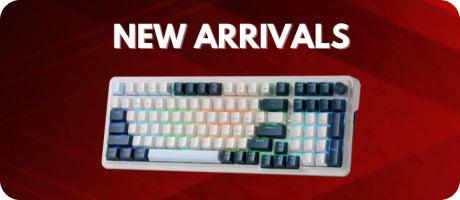



With the introduction of these switches, selecting the perfect switch for your needs becomes an even more exciting journey. The additional options bring further versatility and customization to your mechanical keyboard experience.Consider your preferences for tactile feedback, operating force, total travel distance, sound level, and intended use when choosing among these new switches. Whether you're seeking a tactile delight or a silent performer, the Redragon A120 series has a switch that aligns perfectly with your unique requirements.


In this exploration of 75% keyboards, we will unravel their design philosophy, the benefits they offer, and the vibrant ecosystem that has developed around them. Whether you're a seasoned keyboard enthusiast or someone looking to upgrade their typing experience, this journey through the world of 75% keyboards promises insights into a compelling and versatile keyboard layout.


TKL (Tenkeyless) keyboards have been making waves in the world of computing and peripherals. These compact and streamlined keyboards have garnered significant attention and popularity for their unique design and functionality. In this exploration, we will uncover the concept of TKL keyboards, examining their features, advantages, and the reasons behind their increasing adoption in various computing environments.


In this guide, we'll explore the various mechanical keyboard sizes, including full-size, TKL (tenkeyless), 60%, and more, to help you make an informed decision based on your preferences and needs.


Choosing between a mechanical keyboard and a membrane keyboard comes down to personal preference and specific requirements. Mechanical keyboards offer a superior typing experience, durability, and customization options, making them ideal for professionals and enthusiasts. On the other hand, membrane keyboards are more affordable and provide a quieter typing experience.


Introduction At Redragon, we pride ourselves on delivering high-quality gaming peripherals that enhance your gaming experience without breaking the bank. Our range of keyboards is designed with gamers in mind, combining style, functionality, and affordability. In this blog post, we'll delve into our top five keyboards, each offering unique features to suit different gaming needs. Redragon K530 PRO DRACONIC The Redragon K530 Pro Draconic 60 is a game-changer in our lineup. Its compact 60% design is perfect for minimalist setups or for gaming on the go. The vibrant RGB lighting can be customized to suit your mood or match your gaming setup. The hot-swappable switches allow you to easily swap out switches without the need for soldering, giving you the flexibility to customize your typing experience. The wireless connectivity is seamless, making it easy to connect to your devices. The build quality is top-notch, with a sturdy aluminum frame and double-shot ABS keycaps that feel great to type on. Redragon K585 DITI The Redragon K585 Diti is a one-handed mechanical keyboard that's perfect for gamers who want to maximize their desk space. Its rugged metal frame and satisfying tactile mechanical keys provide unbeatable feedback with every press. The customizable backlighting lets you personalize your keyboard with your own unique style. Plus, it comes with a wrist rest to keep you comfortable during those marathon gaming sessions. Check out the wireless version or wired version. Redragon K556 DEVARAJAS The Redragon K556 is a full-size mechanical keyboard packed with features that make it a standout choice for both gaming and typing. It boasts customizable RGB lighting with 18 different lighting modes and 9 preset color options, allowing you to create your own unique lighting setup. The durable ABS keycaps are double-shot injected, ensuring long-lasting performance. The K556 also features a sturdy metal frame that exudes durability and premium quality. Redragon S101 The Redragon S101 is an affordable gaming keyboard that is a solid option for gamers on a budget. It features a full-size layout and customizable RGB lighting, offering a visually appealing and functional gaming experience. The mechanical-feel membrane keys provide satisfying tactile feedback and responsive typing. One of the highlights of the S101 keyboard is its affordability, as it comes as part of a combo that includes a gaming mouse. Redragon K552 KUMARA Lastly, the Redragon K552 is a compact keyboard with an 87-key layout, making it perfect for gamers who need quick access to all their essential keys without the clutter of a full-size keyboard. The mechanical switches provide satisfying tactile feedback with each press, enhancing the overall typing and gaming experience. The backlit keys are not only visually appealing but also functional, allowing you to game or work even in low light conditions. Conclusion At Redragon, we're committed to providing gamers with high-quality peripherals that enhance their gaming experience. Whether you prefer a compact design, a one-handed layout, or a full-size keyboard, there's a Redragon keyboard for you. Each keyboard in our lineup offers unique features and potential benefits, so consider your personal preferences and gaming needs when making your choice. Experience the Redragon difference today!


Introduction At Redragon, we are committed to providing gamers with high-quality peripherals that enhance their gaming experience. Today, we're going to delve deeper into two of our popular gaming mice dedicated to MMO gamers: the Impact M908 and the Impact Elite M913. Both mice are designed with the needs of MMO gamers in mind, but they each offer unique features that set them apart. Design and Build Quality Both the Impact M908 and the Impact Elite M913 boast a similar design and build quality. They feature a sturdy case and a comfortable grip, perfect for long gaming sessions. The ergonomic design ensures that your hand won't fatigue even after hours of intense gaming. The mice are designed with a total of 19 customizable buttons, allowing you to tailor the mouse to your specific gaming needs. However, there are a few key differences that set them apart. The Impact M908 is a wired mouse, providing a stable and lag-free connection, which is crucial during intense gaming sessions. On the other hand, the Impact Elite M913 offers wireless connectivity, giving you the freedom to move without being tethered to your computer. This difference in connectivity might affect your gaming experience depending on your preference for wired or wireless gaming peripherals. Sensor and DPI The sensor and DPI are crucial factors to consider when choosing a gaming mouse. The Impact M908 uses a high-precision sensor with a max DPI of 12,400, providing accurate tracking and swift response. This makes it perfect for gamers who prefer a lower DPI setting for better control. On the other hand, the Impact Elite M913 boasts a max DPI of 16,000. This higher DPI setting is ideal for gamers who prefer a higher sensitivity for swift movements. The DPI can be easily adjusted on-the-fly, allowing you to switch between different sensitivity settings depending on the gaming scenario. Adjustable Weights One of the standout features of the Impact M908 is its adjustable weights. This feature allows you to change the feel of your mouse, making it as light as 130 grams or as heavy as 167 grams. This level of customization ensures that you can tailor the mouse to your exact preferences, enhancing your gaming experience. Whether you prefer a lighter mouse for swift movements or a heavier mouse for better control, the Impact M908 has got you covered. The Impact Elite M913, on the other hand, does not offer adjustable weights. However, it is designed with an optimal weight distribution, ensuring a comfortable grip and smooth movements. RGB Lighting Both the Impact M908 and the Impact Elite M913 feature customizable RGB lighting. This feature allows you to personalize your mouse with your own unique style. With multiple lighting modes and a spectrum of colors to choose from, you can create a dynamic lighting effect that matches your gaming setup or reflects your gaming mood. Conclusion In conclusion, both the Redragon Impact M908 and the Impact Elite M913 are excellent choices for MMO gamers. Your choice between the two will depend on your personal preferences. If you prefer a wired mouse with adjustable weights and lower DPI, the Impact M908 is the one to get. However, if you prefer a wireless mouse with a higher DPI and the freedom to move without being tethered to your computer, the Impact Elite M913 is the better choice. Regardless of which mouse you choose, both offer great value for their price and are sure to enhance your MMO gaming experience. Experience the Redragon difference today!


When you look at your keyboard, you may have noticed that some keys are abbreviated. This can be confusing for some users, especially those who are not familiar with these abbreviations. In this article, we will provide a brief explanation of each key abbreviation and its function. Insert (Ins): The Insert key on your keyboard enables you to overwrite or insert text to the right of the cursor. This function is useful when you need to make changes to your text without having to delete the existing text. Delete (Del): The Delete key on your keyboard will delete text to the right of the cursor. It is handy when you want to quickly remove a character or a word from your text. Home (Hm): The Home key on your keyboard will move the cursor to the beginning of the current line of text. It is useful when you want to move your cursor to the beginning of the sentence or paragraph. End (End): The End key on your keyboard will move the cursor to the end of the current line of text. It is useful when you want to move your cursor to the end of a sentence or paragraph. Page Up (PU): The Page Up key on your keyboard will scroll your current window up one page. It is a convenient way to move up your document or web page without using your mouse or trackpad. Page Down (PD): The Page Down key on your keyboard will move your current window down one page. It is a handy way to move down your document or web page without using your mouse or trackpad. Print Screen (PS): The Print Screen key on your keyboard will take a snapshot of your screen and copy it to the clipboard. You can then paste the screen shot into another program for viewing or editing. This function is useful when you need to capture a portion of your screen and save it as an image. Scroll Lock (SL): The Scroll Lock key on your keyboard was used to change the scrolling behavior for certain programs. However, not many programs utilize this feature, and it has become an obsolete function. Pause/Break (PB): The Pause/Break key on your keyboard can be used to pause certain programs. This function is useful when you need to pause a program or a command. Number Lock (NL): The Number Lock key on your keyboard will switch the number pad to be used as a directional pad. The numbers 8, 2, 4, and 5 can be used as Up, Down, Left, and Right, respectively. This function is useful when you need to navigate through your document or web page quickly. Ctrl (Control): The Control key on your keyboard is abbreviated as Ctrl. It is one of the most important keys on your keyboard and is used in combination with other keys to perform various functions, such as copying and pasting text, opening a new tab in your web browser, or saving a document. Alt (Alternate): The Alt key on your keyboard is abbreviated as Alt. It is another important key on your keyboard and is used in combination with other keys to perform various functions, such as opening a drop-down menu, switching between open windows or programs, or accessing special characters. Shift: The Shift key on your keyboard is not abbreviated, but it is a key that is commonly used. It is used to type capital letters or to access the upper symbols on the keyboard. Tab: The Tab key on your keyboard is also not abbreviated, but it is an important key for navigating through forms, documents, and web pages. It allows you to move from one field or box to the next. Esc (Escape): The Escape key on your keyboard is abbreviated as Esc. It is used to cancel a command or operation that is in progress, or to exit a full-screen mode in a program or web page. F1-F12: The function keys F1-F12 on your keyboard are abbreviated as F1, F2, F3, etc. They are located at the top of your keyboard and are used to perform various functions depending on the program or application you are using. For example, F1 is commonly used to access help menus, while F5 is used to refresh a web page. Backspace: The Backspace key on your keyboard is not abbreviated, but it is an essential key for correcting mistakes in your text. It allows you to delete characters to the left of the cursor. Enter: The Enter key on your keyboard is also not abbreviated, but it is an essential key for executing commands or functions, such as submitting a form, sending an email, or starting a new paragraph. These are just a few more examples of common keyboard abbreviations. By familiarizing yourself with these shortcuts and others, you can save time and be more efficient when using your computer. Ctrl+Z (Control+Z): This keyboard shortcut is often abbreviated as Ctrl+Z. It is used to undo the last action that you performed, such as deleting text or formatting a document. Ctrl+Y (Control+Y): This keyboard shortcut is often abbreviated as Ctrl+Y. It is used to redo the last action that you performed, such as undoing a delete or formatting operation. Ctrl+S (Control+S): This keyboard shortcut is often abbreviated as Ctrl+S. It is used to save a document or file that you are currently working on. Ctrl+F (Control+F): This keyboard shortcut is often abbreviated as Ctrl+F. It is used to open the "Find" dialog box, where you can search for a specific word or phrase within a document or webpage. Ctrl+X (Control+X): This keyboard shortcut is often abbreviated as Ctrl+X. It is used to cut a selected item, such as a piece of text or a file, and save it to the clipboard for later use. Ctrl+A (Control+A): This keyboard shortcut is often abbreviated as Ctrl+A. It is used to select all items or text within the current document or window. Ctrl+P (Control+P): This keyboard shortcut is often abbreviated as Ctrl+P. It is used to open the print dialog box, where you can select a printer and configure print settings. In conclusion, understanding the keyboard abbreviations is essential for every computer user. By knowing the function of each key abbreviation, you can work more efficiently and navigate through your computer faster. Now that you know what these keys mean, you can make use of them to improve your productivity.


Introduction: When it comes to mechanical keyboards, there are a wide range of options available on the market today. Are you tired of bulky keyboards that take up too much space on your desk? The 65 keyboard might be the solution you're looking for. In this ultimate guide, we’ll cover everything you need to know about 65% keyboards, including what they are, how they differ from other types of keyboards, and why you might want to consider investing in one for yourself. Table of Contents: What Do Terms Like 65 Percent Mean? Keyboard Sizing What is a 65% Keyboard? Why is the 65% Keyboard More Popular Than the 60% Keyboard? How Does the 65% Keyboard Compare to a Full-sized and TKL Keyboard? Benefits & Drawbacks of a 65% Keyboard Tips for Choosing the Right 65% Keyboard Customizing Your 65% Keyboard Tips for Maintaining the Lifespan of Your 65% Keyboard Troubleshooting Common Issues with 65% Keyboards Redragon 65% Keyboards Verdict What Do Terms Like 65 Percent Mean? When it comes to computer keyboards, there are a variety of different terms used to describe the size and layout of the device. These labels are often expressed as percentages, such as 60 percent or 65 percent. But what do these percentages actually mean? The Basics of Keyboard Labels The percentage labels correspond to the number of physical keys on the keyboard. For example, a full-size keyboard typically has 104 or 105 keys, while a 60 percent keyboard will have slightly more than 60 keys, and a 65 percent keyboard will have slightly more than 65 keys. However, the exact number of keys can vary depending on the specific keyboard and its layout. Keyboard Sizing Keyboard Layouts by Percentage Here's a breakdown of some of the most common keyboard layouts, listed by percentage: Full-size: This is the most common keyboard layout, featuring alphanumerics and modifier keys, the function row, navigation and arrow keys, and the numpad. TKL (tenkeyless): Similar to a full-size keyboard, but without the numpad. 75 percent: About as many keys as a TKL keyboard, but with each cluster grouped together tightly to make the keyboard more compact. 65 percent: A keyboard with no function row, navigation keys, or numpad, only featuring alphanumerics, modifiers, and arrow keys. 60 percent: This keyboard features just alphanumerics and modifiers, with no function row, navigation keys, or numpad. 40 percent: This keyboard omits the number row but includes extra modifiers and a smaller space bar to keep the design compact. What is a 65% Keyboard? In simple terms, a 65% keyboard is a compact keyboard that's smaller than a full-size or tenkeyless keyboard but slightly larger than a 60% keyboard. It typically has around 67 to 68 keys, depending on the manufacturer, which is roughly 65% of the keys found on a full-sized keyboard. Some companies choose to include 1.5u keys between the spacebar and left arrow key instead of using three 1u keys. It's worth noting that 1u is the size of a standard letter key and is used as a reference point for measuring key sizes on a keyboard. Specifically, the 65 keyboard removes the numeric keypad, navigation keys, and some function keys. This reduction in size makes it a great option for those who want a smaller keyboard that still offers all the essential keys. Despite its smaller size, a 65% keyboard retains the essential keys you need for day-to-day work. Why is the 65% Keyboard More Popular Than the 60% Keyboard? One of the significant reasons for the 65% keyboard's popularity is its enhanced functionality. Unlike the 60% keyboard, the 65% keyboard includes dedicated arrow keys and an extra row of keys on the right-hand side of the board. The additional keys usually consist of the home, delete, page up, and page down keys, which are typically above the arrow keys on a full-sized keyboard layout. Having dedicated arrow keys is a significant advantage as it helps to navigate documents and web pages efficiently. Moreover, the extra row of keys enhances functionality by providing quick access to essential keys such as delete, home, and page up/down keys. How Does the 65% Keyboard Compare to a Full-sized and TKL Keyboard? First, let's take a look at full-size keyboards. Full-sized keyboards are the standard keyboards that most people are used to. They typically have 104 keys, including a number pad, and take up a lot of desk space. Full-sized keyboards are great for users who need all the keys they can get, such as gamers or programmers, but they're not very portable. Now, let's talk about tenkeyless keyboards or TKL keyboards. TKL keyboards are like full-sized keyboards, but they don't have a number pad. They typically have around 87 keys, which is a lot more manageable than the 104 keys found on full-sized keyboards. TKL keyboards are a great option for users who want a keyboard that's more portable than a full-sized keyboard but still has enough keys to get the job done. Benefits & Drawbacks of a 65% Keyboard For those who want a smaller keyboard without sacrificing too much functionality, the 65% keyboard is a great option. It has the same layout as the 75% keyboard, but without the dedicated functions row, which makes the keyboard even smaller depth-wise. This means the functions row is built into the numbers row as secondary controls, which are usually activated with the FN key. The 65% keyboard is the smallest keyboard that still has a dedicated arrows key and the home cluster in the single column above. This makes it a perfect complement for your notebook, as it can easily fit into your backpack and give you maximum space for mouse movement in an FPS environment. However, one disadvantage of the 65% keyboard is that the activation of secondary keys, such as the F row, the Tilda key, and the home cluster, all require a single FN click. This can take some getting used to if you're used to having dedicated keys for these functions. If you're a gamer who only cares about the WASD zone, you can go even smaller into the 60% form factor. But for those who want a balance between size and functionality, the 65% keyboard is a great option. Tips for Choosing the Right 65% Keyboard When choosing a 65% keyboard, there are several factors to consider. Here are some key factors to keep in mind: Size and Layout The size and layout of a 65% keyboard are some of the most critical factors to consider when selecting one. These keyboards come in different sizes and layouts, and you should choose one that suits your needs. The layout refers to the arrangement of the keys on the keyboard, and some layouts may be more comfortable for you than others. Key Switches Key switches are the heart of any mechanical keyboard, and they can significantly affect the typing experience. There are many types of key switches available, and they all offer different levels of tactile feedback, actuation force, and noise level. You should choose a key switch that suits your typing style and preferences. Build Quality The build quality of a keyboard is another important factor to consider. You want to choose a keyboard that is sturdy and well-built, as this will ensure that it lasts for a long time. Look for a keyboard that is made with high-quality materials and has a solid construction. Backlighting Backlighting is a feature that is becoming increasingly popular in mechanical keyboards. It can make it easier to type in low-light conditions and can also add a cool visual effect to your keyboard. If backlighting is important to you, make sure to choose a keyboard that offers it. Programmability Some 65% keyboards offer programmability, which allows you to customize the keyboard layout and assign different functions to keys. This can be a useful feature for power users who want to optimize their typing experience. Price Price is always a consideration when choosing any product, and mechanical keyboards are no exception. 65% keyboards can range in price from budget-friendly to high-end. It is essential to choose a keyboard that fits within your budget while still offering the features that you need. Compatibility Compatibility is another important factor to consider when selecting a keyboard. Make sure that the keyboard you choose is compatible with your operating system and has the necessary drivers available. Brand Reputation Brand reputation is another factor to consider when selecting a keyboard. You want to choose a keyboard from a reputable brand that has a track record of producing high-quality products and providing excellent customer support. Aesthetics Finally, aesthetics may be an essential factor for some users. Mechanical keyboards come in a variety of designs and colors, so choose one that matches your style and personality. Customizing Your 65% Keyboard When it comes to customizing a 65% keyboard, the possibilities are almost endless. From keycaps to switches to cables, there are many different ways to personalize your keyboard to suit your needs and preferences. In this section, we will take a closer look at some of the most popular customization options for 65% keyboards and where to find them. Switches One of the main advantages of a 65% keyboard is the ability to customize it to suit your specific needs and preferences. Many 65% keyboards feature hot-swappable switches, which allow you to easily replace or upgrade the switches without needing any soldering equipment. There are many different types of switches available, each with its unique characteristics, such as tactile feedback, actuation force, and noise level. Some popular switch brands include Cherry, Gateron, and Kailh. You can find switches from many different vendors. Redragon also launches its unique switches crafted for a superior typing experience. Keycaps One of the most common ways to customize a keyboard is by changing the keycaps. Keycaps come in many different colors, materials, and designs, allowing you to create a unique look for your keyboard. Some popular keycap materials include ABS, PBT, and double-shot PBT. You can find keycaps from many different vendors, including popular retailers like Amazon. Stabilizers Stabilizers are another essential component of a mechanical keyboard that can affect the typing experience. They help keep longer keys, such as the spacebar and shift keys, stable and prevent them from wobbling or rattling. There are several types of stabilizers available, including plate-mounted and PCB-mounted stabilizers. You can find stabilizers from vendors like Ducky, GMK, and ZealPC. Cables Cables are often an overlooked component of a mechanical keyboard, but they can also be customized to create a unique look. Custom cables come in many different colors, patterns, and materials, including paracord, nylon, and PVC. You can find custom cables from vendors like ZapCables and MechCables. Custom Cases Custom cases are another way to personalize your keyboard. They come in many different materials, such as aluminum, brass, and wood, and can be customized with different finishes, colors, and designs. Custom cases can be expensive, but they can also significantly enhance the look and feel of your keyboard. You can find custom cases from vendors like KBDFans and KPrepublic. Tips for maintaining the lifespan of your 65% keyboard Maintaining the lifespan of your 65% keyboard is essential to ensure that it remains functional and performs optimally. In this section, we will provide some tips for maintaining your keyboard and troubleshooting common issues. 1. Cleaning Regular cleaning of your keyboard is essential to maintain its performance and lifespan. Dust, dirt, and debris can accumulate between the keycaps and switches, affecting their functionality. You can use a soft-bristled brush or compressed air to remove any dirt or debris. Avoid using water or cleaning solutions as they can damage the keyboard. 2. Lubrication Lubrication of the switches can help reduce friction and noise and extend the lifespan of the keyboard. You can use switch lubricants like Krytox or Tribosys to lubricate the switches. However, it's essential to use the right type and amount of lubricant to avoid over-lubricating the switches, which can cause them to malfunction. 3. Avoid eating and drinking near the keyboard Food particles and liquids can damage the keyboard and affect its functionality. Avoid eating and drinking near the keyboard to prevent spills or crumbs from getting between the switches and keycaps. 4. Store the keyboard properly When not in use, store your keyboard in a dry and dust-free environment. Avoid exposing it to direct sunlight, extreme temperatures, or humidity, as they can damage the keyboard. 5. Use a keyboard cover Using a keyboard cover can help protect your keyboard from dust, spills, and other contaminants. It can also help prevent the keycaps from fading or yellowing due to UV exposure. Troubleshooting common issues with 65% keyboards 1. Sticky or unresponsive keys Sticky or unresponsive keys are often caused by dirt, dust, or debris accumulated between the switches and keycaps. Try cleaning the keyboard using a soft-bristled brush or compressed air. If that doesn't work, you may need to remove the keycaps and switches for a more thorough cleaning. 2. Switch chatter Switch chatter occurs when a switch registers multiple keystrokes even though the key is pressed once. It can be caused by a faulty switch, dirt or debris, or a misaligned stabilizer. Try cleaning the switch and stabilizer or replacing the faulty switch. 3. Stabilizer rattle Stabilizer rattle occurs when the longer keys, such as the spacebar or shift keys, wobble or rattle when pressed. It can be caused by a misaligned stabilizer or insufficient lubrication. Try re-aligning the stabilizer or lubricating it with a stabilizer lubricant. 4. RGB lighting issues RGB lighting issues can be caused by a faulty LED or a software malfunction. Try resetting the keyboard or updating the firmware. If that doesn't work, you may need to replace the faulty LED or contact the manufacturer for further assistance. Redragon 65% Keyboards Redragon offers a variety of 65% keyboards to suit different needs and preferences. Whether you're looking for a wireless, Bluetooth, or wired keyboard, we have something to offer. we are proud to introduce our latest 65% keyboard lineup, the CASTOR K631 PRO SE, CASTOR K631 PRO, CASTOR K631 Grey, CASTOR K631 PRO 65% Mintand and CASTOR K631. There are three versions available, the Castor, the Pro, and the Pro SE, all of which feature a 65% layout with RGB lighting. These keyboards are designed with the gamer and enthusiast in mind, featuring a range of customizable options and high-quality construction. CASTOR K631 Black/Grey Wired Keyboard -Hot-Swappable, Vibrant RGB, Dedicated for FPS Gamers CASTOR K631 Black CASTOR K631 Grey Wired Keyboard Looking for a keyboard that can keep up with your fast-paced gaming? Look no further than the Redragon K631 Keyboard. With its hot-swappable red switches, this keyboard allows for easy customization and updates to fit your preference, and the vibrant groovy RGB backlighting modes add a touch of personality to your gaming setup. The wired 68 keys layout, ultra-compact and lightweight slim design frees up precious desk space for less clutter. This keyboard is dedicated to FPS gamers with its design that allows for mouse space saving and a straight desktop setup. And with pro software support, you can design your own new modes and effects for even more customization. The Castor is the base model in the series, and it is identical to the Pro model, except that it is wired only. It is perfect for gamers who prefer a wired setup and do not require the wireless functionality of the Pro version. CASTOR K631 PRO Wireless Keyboard CASTOR K631 PRO Wireless Keyboard -Hot-Swappable, Wireless Versatility, Vibrant RGB, Dedicated for FPS Gamers The Pro version of the keyboard is wireless and can connect via 2.4 GHz and Bluetooth, making it a versatile option for gamers who prefer a wireless setup. It features linear red switches, perfect for gamers who require a smooth and quiet typing experience. CASTOR K631 PRO SE Wireless Keyboard -Hot-Swappable, Wireless Versatility, Custom Linear Switches, Translucent Board, Vibrant RGB, Dedicated for FPS Gamers CASTOR K631 PRO SE CASTOR K631 PRO 65% Mint Wireless The SE is the most expensive keyboard in the series, priced at $60 USD. It is the only keyboard in the series that features custom linear switches, making it a standout option for gamers looking for a unique and customized typing experience. No matter which version you choose, the Redragon K631 series keyboards provide an excellent gaming experience with their 65% layout and vibrant RGB lighting. Choose the Pro SE for a unique and customized typing experience, the Pro for wireless versatility, or the Castor for a reliable and wired gaming setup. Order now and take your gaming to the next level. GAMING KEYBOARDS COMPARISON K631 Castor 65% Dimension/size Keyboard Weight Switch Type Keys Connection Extra G Keys Wrist Support Backlit Software K631 Castor 65% 12.2×4.1 in 0.45 kg Red Switch (Hot-Swap) 68 Wired 0 x RGB ✓ CASTOR K631 Grey 12.2×4.1 in 0.45 kg Red Switch (Hot-Swap) 68 Wired 0 x RGB ✓ K631 PRO 65% 12.2×4.1 in 0.47 kg Red Switch (Hot-Swap) 68 Wired/BT/2.4Ghz 0 x RGB ✓ K631 PRO SE 65% 12.2×4.1 in 0.47 kg Custom Switch (Hot-Swap) 68 Wired/BT/2.4Ghz 0 x RGB ✓ CASTOR K631 PRO 65% Mint 12.2×4.1 in 0.47 kg Custom Switch (Hot-Swap) 68 Wired/BT/2.4Ghz 0 x RGB ✓ Verdict Overall, the 65 keyboard is a great option for those looking for a more compact and streamlined typing experience. Its features such as customizable keys, mechanical switches, RGB lighting, and programmable macros make it an attractive option for gamers and typists alike. The benefits of improved ergonomics, increased portability, more desk space, and aesthetic appeal are also worth considering. However, the drawbacks of limited functionality, a learning curve, and higher cost should also be taken into account before making a decision. With this ultimate guide, you now have all the information you need to make an informed decision about whether the 65 keyboard is right for you.